
Tutorials › Audio messages
Audio messages
Answer the call and hear a voice through the earpiece, like a real caller. Record one in the app or attach any audio file.
-
Open the scheduling screen and pick a caller
Tap the green call button, choose the caller, then look under Call options → Audio message.
-
Record, or attach a file
- Record: tap to start, speak, tap to stop. Preview it, re-record if needed, then Use recording. Recordings are kept under My recordings for reuse on later calls.
- Attach file (full version): pick any audio file on your phone, for example a message a friend recorded for you.
-
Schedule the call as usual
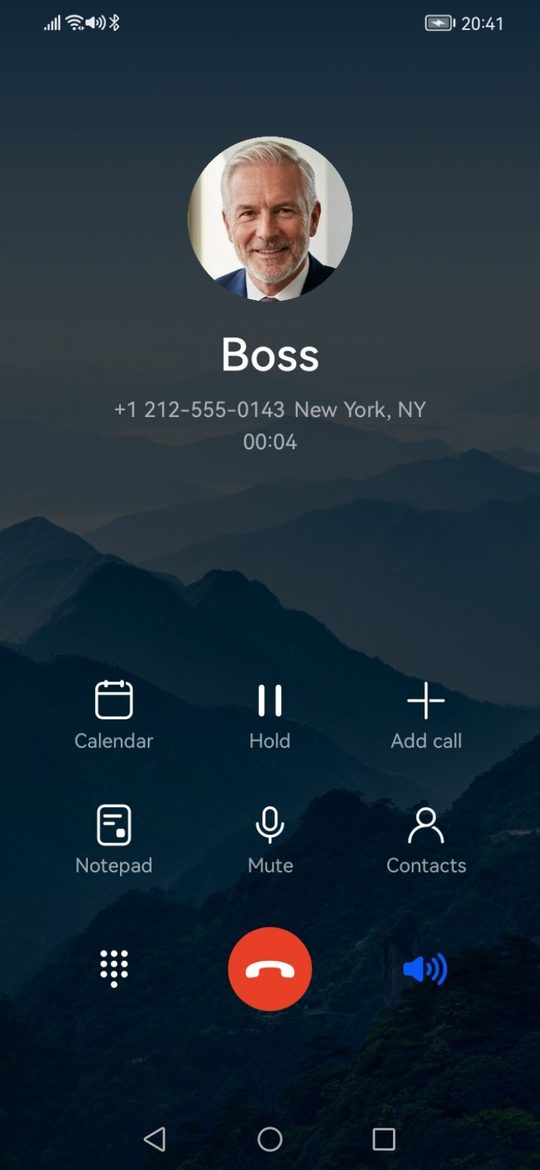
The option shows Attached. When the call rings and you answer, the message plays through the call audio. If you decline or let it ring out, nothing plays.
What makes it convincing
- The audio is routed like real call audio, through the earpiece, not the loudspeaker. Hold the phone to your ear as you would on a real call. Switch to speaker on the call screen if you want others to hear it.
- The screen turns off at your ear during the answered call, exactly as on a real call.
- Record something that gives you a reason to leave: "Hi, it's me, are you free to talk? Something came up at the office." Leave pauses so you can reply.
Good to know
- The microphone is used only while you are recording. Recordings stay on your phone.
- Deleting a recording that a scheduled call still uses makes that call ring without the message.
- A prepared call can carry an audio message too. Prepared call.